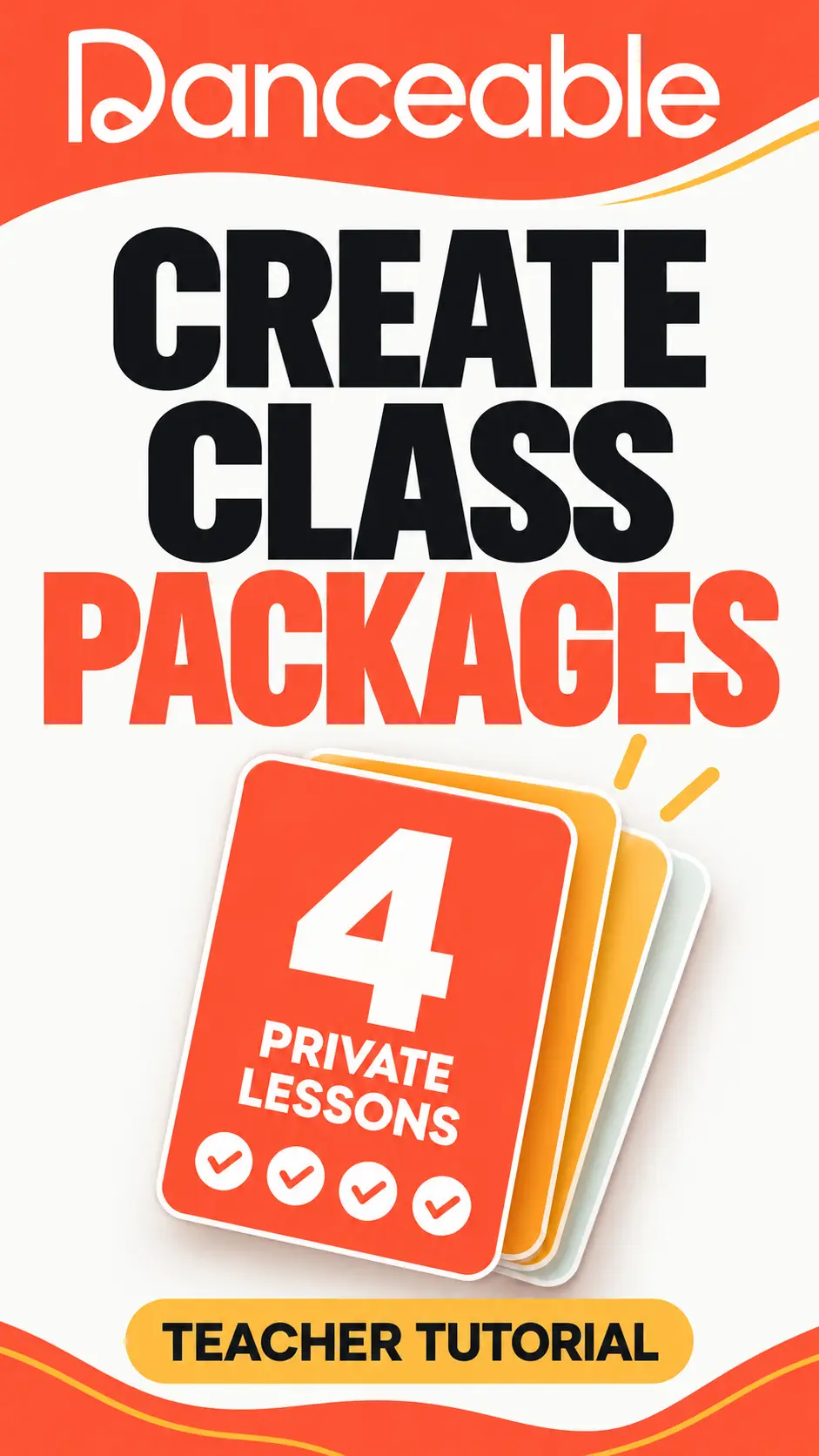
A well-designed promotion gives new students a reason to take their first lesson. With Danceable, dance teachers and event organizers can create promo codes, choose which offerings qualify, and control when and how often a discount can be used.
In this tutorial, we’ll create a ten percent discount for new students booking private lessons or lesson packages.
1. Open Promo Codes
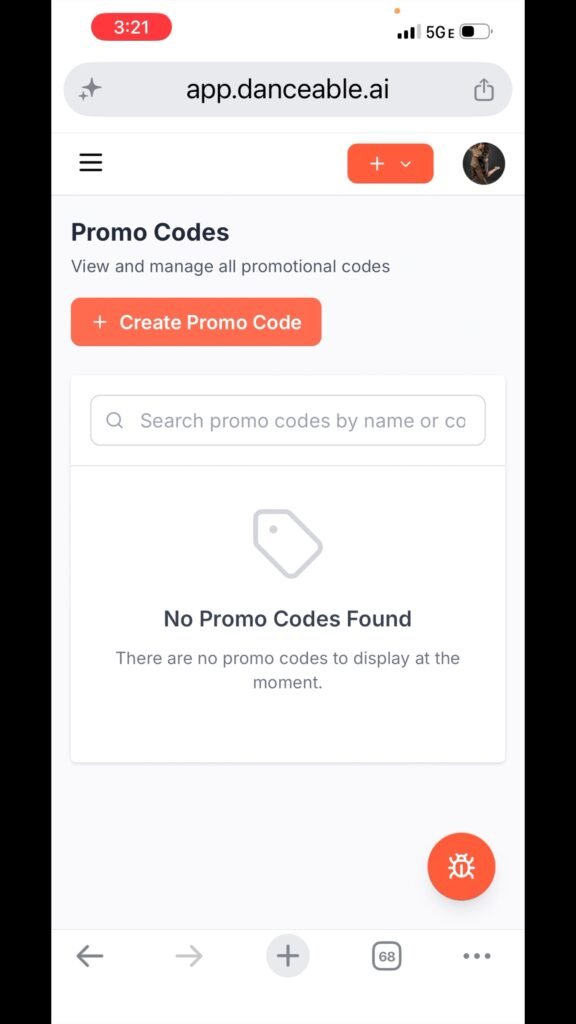
From your Danceable dashboard, open the left-side menu, scroll down, and select Promo Codes. Then click Create Promo Code.
2. Name and describe your promotion
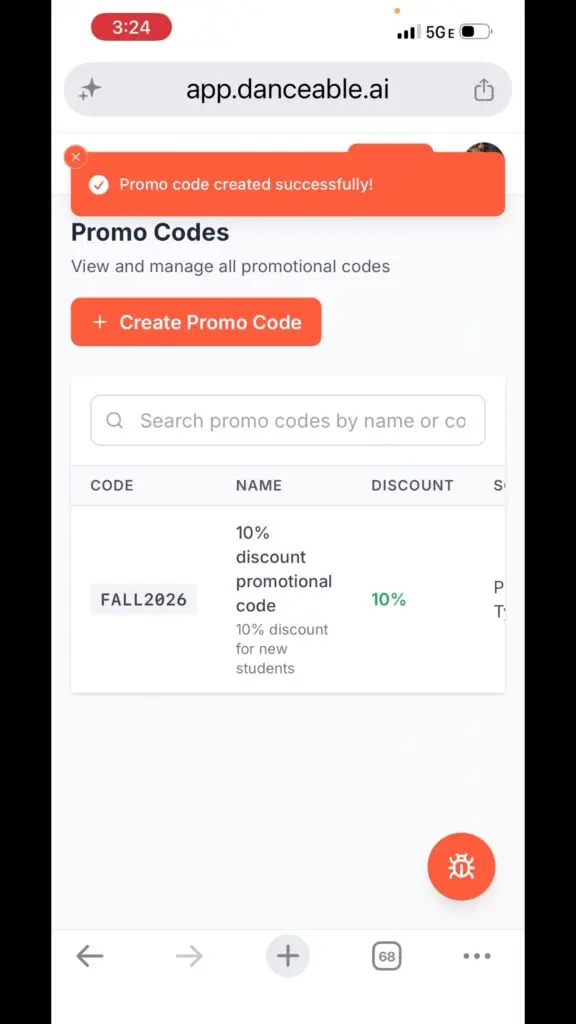
Enter a code that’s easy for students to read and type. In this example, we use FALL2026.
Add a short description, such as “Ten percent discount for new students,” and set the status to Active.
You can use the status toggle to activate or deactivate the promotion.
3. Choose the discount
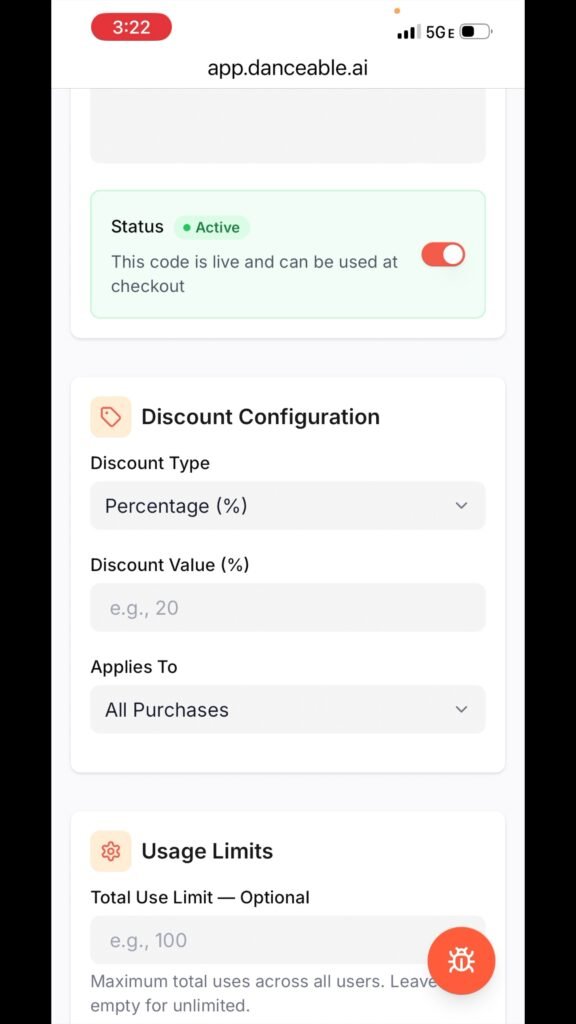
Under Discount Configuration, choose the type of discount:
- Percentage: Reduce the price by a percentage.
- Fixed amount: Take a set amount off the price.
- Override price: Set a specific promotional price.
For this example, select Percentage and enter 10.
4. Select eligible offerings
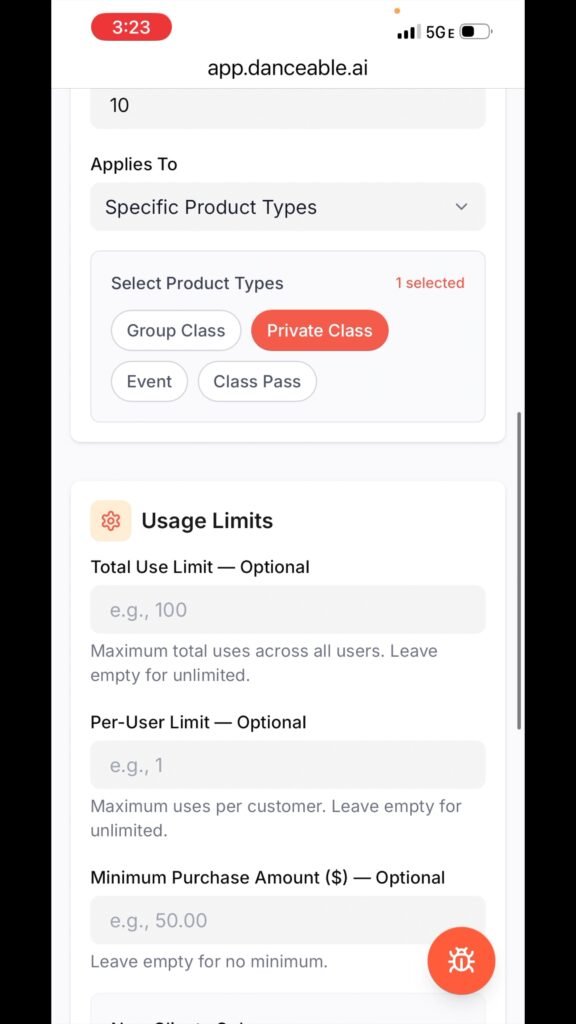
Choose what the promo code applies to. The available options include specific product types, dance categories, classes, and event packages.
For our example, select Specific Product Types, then choose Private Lessons.
This keeps the promotion focused on the lessons you want to offer at a discount.
5. Set usage limits
Usage limits help you control the size of your promotion.
For this example, set:
- Total use limit: 20
- Per-user limit: 1
Together, these settings allow up to twenty redemptions, with each student able to use the code only once.
Leave the minimum purchase amount blank for this example, so the discount can apply to an individual private lesson or an eligible lesson package.
With a percentage discount, a larger eligible package means a larger total saving. Students can choose the option that fits their learning goals and budget.
6. Limit the promotion to new clients
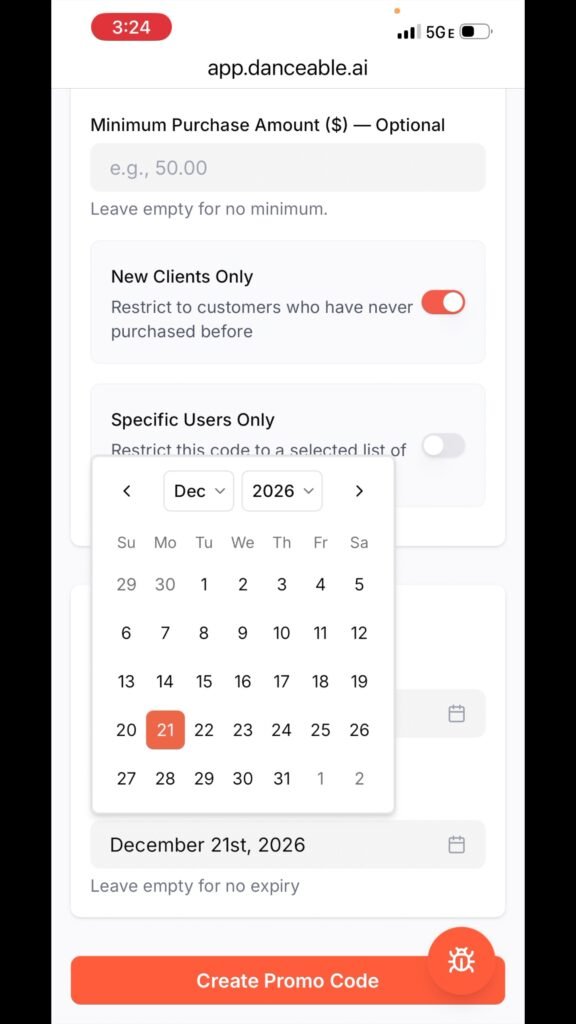
Enable New Clients Only to make this a welcome offer for people who are just getting started with you.
For this example, leave the user-type selection unchanged.
7. Set the promotional period
Choose a start date and an expiration date.
In the tutorial, the fall promotion starts on the day it’s created and runs until approximately the beginning of winter. For your own promotion, choose dates that match your teaching schedule and the offer you want to share.
8. Review and create your code
Check the code, discount, eligible offerings, usage limits, and dates. When everything is ready, click Create Promo Code.
Once Danceable confirms that the code was created successfully, it’s ready to share.
Share your offer clearly
When a prospective student contacts you, explain the discount, who qualifies, and when it expires.
For example:
New to my private lessons? Use FALL2026 for ten percent off your first eligible private lesson or package during the promotional period. Available to new students, once per person, for up to twenty total redemptions.
Replace the example code and terms with your own promotion’s details before sharing.
A clear offer makes it easier for students to understand their options and take the next step toward dancing with you.